Use DayCast on your computer
Two ways. The Mac app is the full app. The website works on any computer, including Windows, for reading, editing text and quick capture. Both read the same data, synced through your own iCloud and encrypted before it ever leaves your devices.
The Mac app
Everything the iPhone does: notes with attachments, PDFs with markup, journal media, the planner inspector, widgets, Siri, keyboard shortcuts, printing. One purchase covers iPhone, iPad and Mac.
The web app
Windows, Chromebook, a work laptop, a library computer. Read notes, tasks, journal and spending, edit note text, check off tasks, capture new notes and tasks. Nothing to install.
Route 1: the Mac app
- Install DayCast on your Mac from the Mac App Store. If you already bought it on iPhone there is nothing to pay; it is one app.
- Sign in to iCloud on the Mac with the same Apple Account as your iPhone (System Settings → your name). DayCast uses your iCloud, not an account of its own.
- On your iPhone, turn on sync: Settings → Sync → Sync Across Devices. Give it a minute the first time.
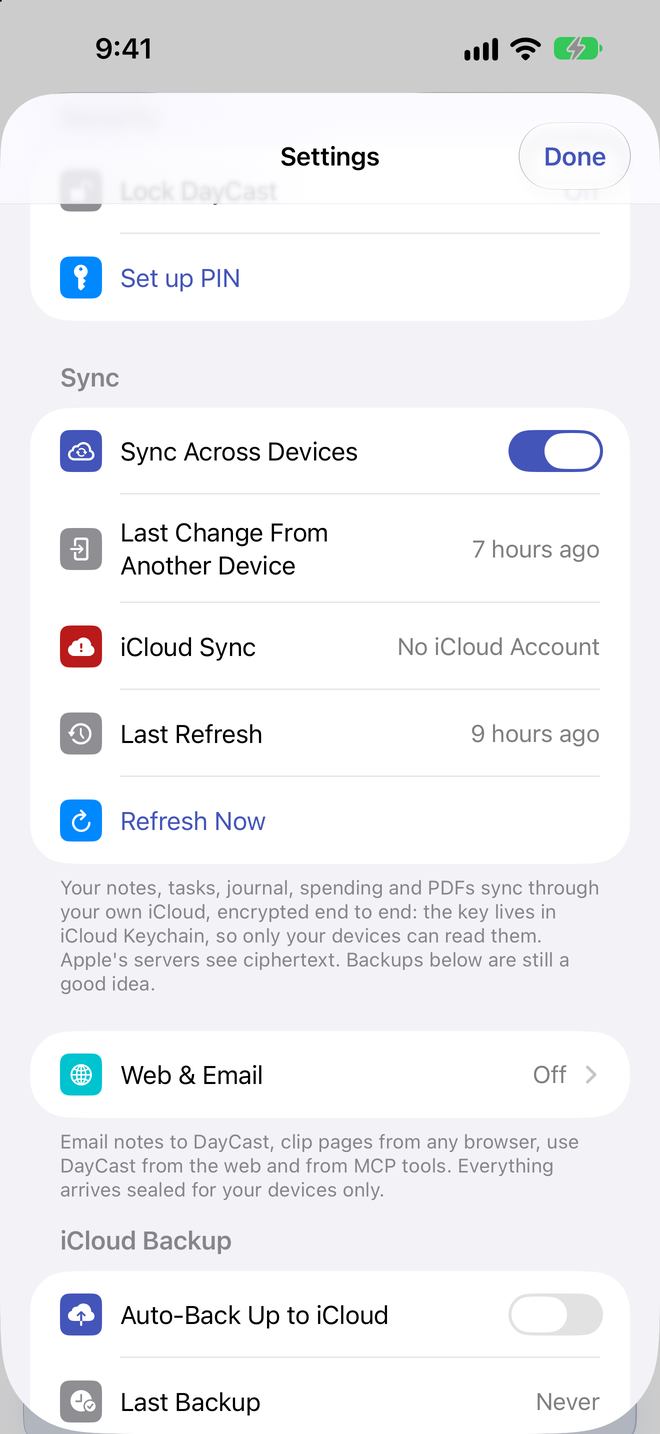
- Open DayCast on the Mac. Your notebooks are in the sidebar, the planner shows Today with an inspector on the right, and the menu bar has File, Go and Help. Your encryption key arrives through iCloud Keychain automatically, so there is nothing to type.
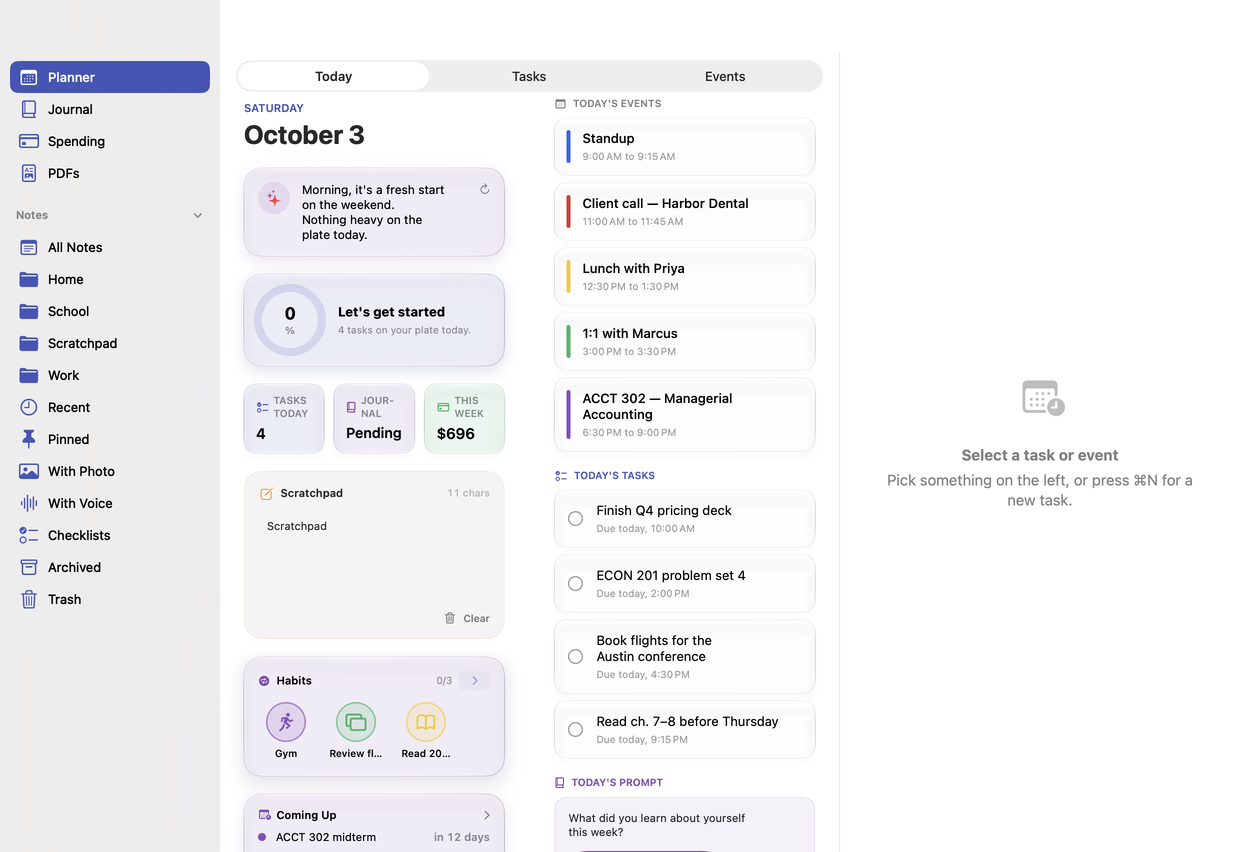
Shortcuts worth knowing: ⌘N new task, ⇧⌘N new note, ⌘1–⌘5 switch sections, ⌘F search, ⌘P print, ⇧⌘V paste a list as tasks. Help → Take a Tour walks you through the Mac app.
Route 2: the web app, on any computer
Think of it as app first, website second. The website has no sign-up of its own: it reads the copy of your data that your iPhone put in iCloud, and it needs a passphrase you choose on the phone to unlock it. Three things on the phone, then two on the computer.
- On your iPhone: turn on sync. Settings → Sync → Sync Across Devices. Without this the website has nothing to show.
- Turn on Web & Email Capture. Settings → Web & Email, flip the switch. This publishes a public key so anything you create on the website can be sealed for your phone. The checklist at the top of that screen shows what is still missing.
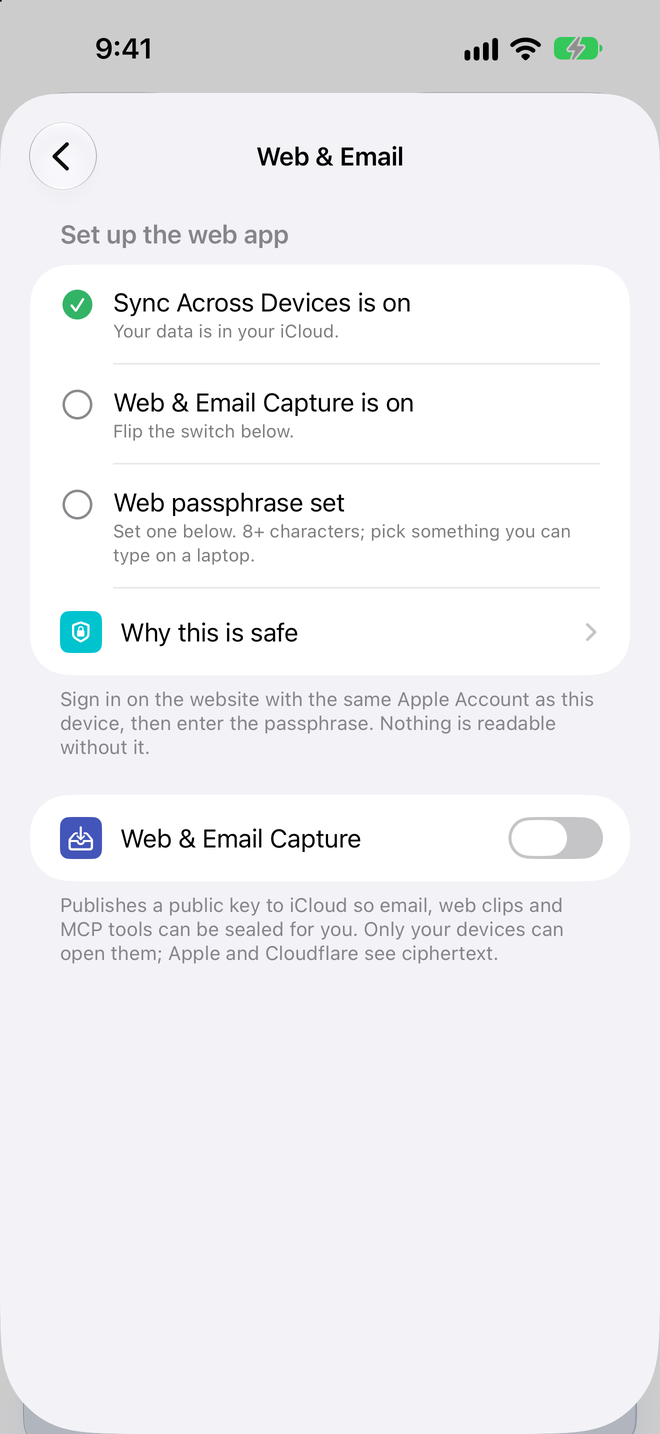
- Set a web passphrase. Same screen, Set Web Passphrase. Eight or more characters you can type on a laptop. This passphrase wraps your encryption key; the wrapped copy syncs through iCloud, the passphrase itself never leaves your head. When all three rows show a green check you are set.
- On the computer: open daycast-web.pages.dev and press Sign in with Apple. Use the same Apple Account as the phone. This is Apple's own sign-in; DayCast never sees your Apple password.
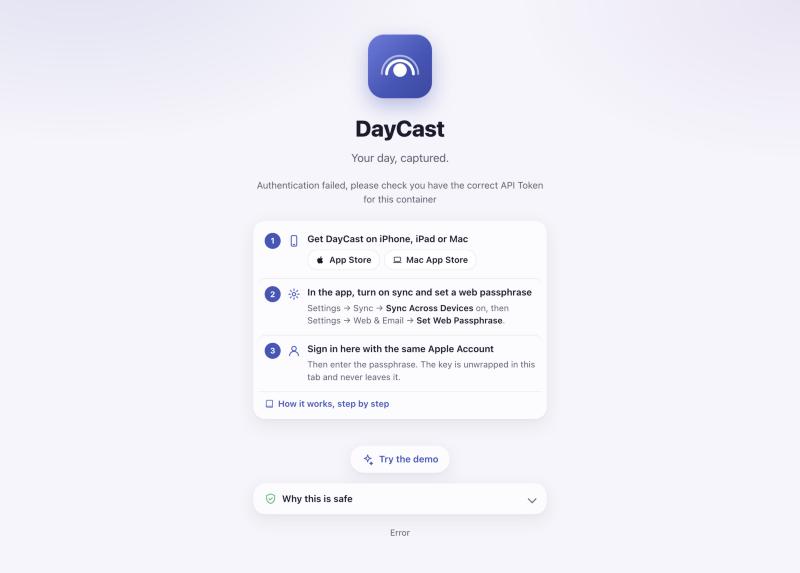
- Enter the web passphrase. Your notes decrypt right there in the browser. Tick Keep me unlocked on this browser on a computer you trust and you will not be asked again for 30 days. On a shared computer leave it off and press Lock when you are done; the site also locks itself after 15 idle minutes.
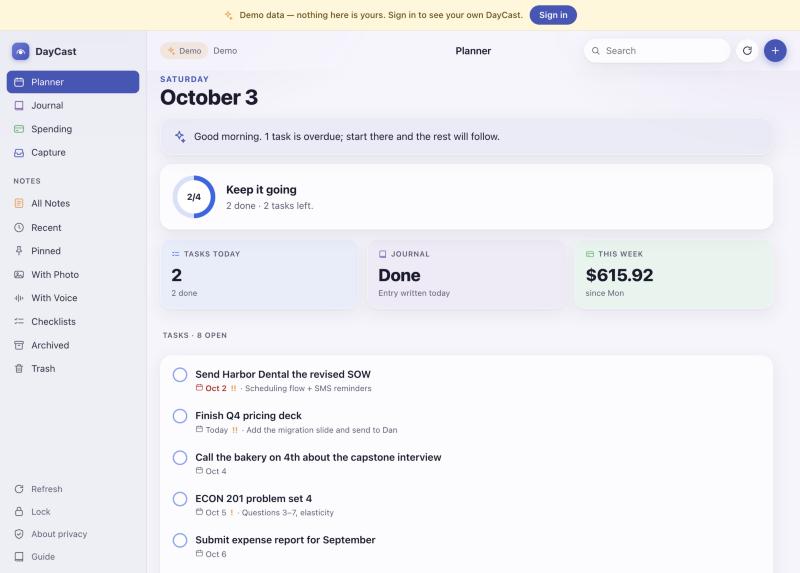
What you can do on the web
- Read every note, task, journal entry and expense, with notebooks and smart folders in the sidebar and search across all of it.
- Edit the text of a note and save it; check tasks off. Changes appear on your phone on the next sync.
- Capture a new note or task. It travels sealed and lands in the app the next time you open it.
- Email anything to your personal DayCast address (shown in Web & Email) to make a note; add +task, +expense or +journal before the @ to make a task, an expense or a journal entry.
What stays in the apps
PDFs, attachments, sketches, voice memos, rich-text formatting (saving a formatted note from the web keeps the text and drops the formatting, and the page warns you first), sharing, AI features, widgets and Siri.
Why it works this way, and why that is safer
A typical web app
- ■ You create an account with the company.
- ■ Your notes sit readable on their servers.
- ■ A breach, a subpoena, a sale of the company, or an employee can expose them.
- ■ Login works from anywhere, because the server holds everything.
DayCast
- ■ No DayCast account and no DayCast server. Your data lives in your own iCloud.
- ■ Everything is encrypted on your devices before it syncs. Apple stores ciphertext.
- ■ The web passphrase unwraps the key inside your browser. The key stays in memory and is gone when you lock or walk away.
- ■ The phone has to be set up first, because only your devices hold the key. That one extra step is the whole privacy guarantee.
- The website is a static page hosted on Cloudflare Pages. No analytics, no trackers, no third-party scripts other than Apple's CloudKit library.
- New captures are sealed to your phone's public key before they leave the browser, so the relay that carries them cannot read them either.
- "Keep me unlocked" stores the key only in that browser's own non-extractable key store, never on a server, and expires after 30 days.
- Forgot the passphrase? Set a new one in the app. The app still has your key, so nothing is lost; the website just needs the new passphrase.
Common questions
Can I sign up on the website without the app?
No. There is nothing to sign up to; the website reads your own iCloud data and unlocks it with a passphrase you set in the app. Try the demo to see how it looks.
The website says "No synced data yet".
Sync Across Devices is off on the phone, or the first sync has not finished. Turn it on, wait a minute, then press Refresh on the website.
The website says "No web passphrase yet".
Set one at Settings → Web & Email → Set Web Passphrase on the phone, then reload the page.
Does it work on Windows and Android browsers?
Yes. Any current browser works; the page needs nothing installed.
Is the Mac app the same purchase?
Yes. DayCast is one app for iPhone, iPad and Mac. Premium bought on one unlocks all three.